
Get started
Sign up and create your workspace
Create an EchoNova account with email or with Google or Microsoft, verify it, answer the three onboarding questions, and open the workspace that is created with the account.
Creating an account creates your workspace with it. When you finish this page you will have an account you can sign in to, you will have answered the three questions the portal asks on your first sign-in, and you will be on Home inside a workspace that is yours, with a trial subscription on it. Expect about five minutes, most of it waiting for one email.
What you need
- An email address you can read, or a Google or Microsoft account you can sign in to.
- A browser. Google and Microsoft sign-in open a small window; if your browser blocks it, the sign-in continues on the same tab.
Steps
Step 1: Open the sign-up page
Open /auth/sign-up, or select Create account on the sign-in page. The
form is headed Create Your Account with the line Get started with
EchoNova. While the portal is in private beta, the page reads Request
Access instead, and the form ends with Request access; your account is
then approved before you can sign in. It asks for Username, Full Name, Email and
Password, and ends with Create Account. Under the divider OR are
Continue with Google and Continue with Microsoft.
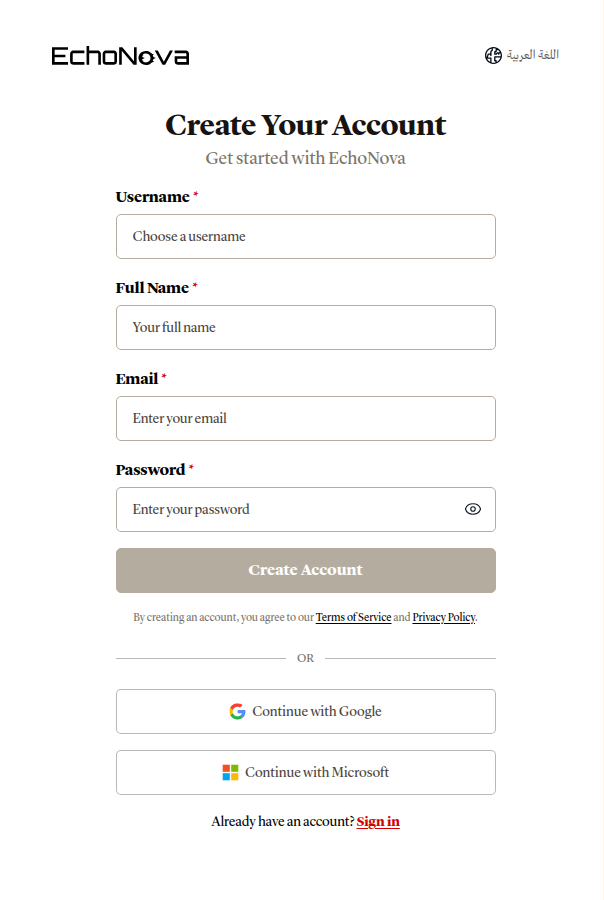
Decide the method here. An account keeps the method it was created with, and one email address belongs to one account. See Sign-in methods.
Step 2: Create the account with email
Fill in the four fields. Full Name is the name the portal greets you by and the name your workspace takes, so type it as you want to be known. As you type the password, a checklist of five rules appears under the field; Create Account enables when every rule passes. Pressing it agrees to the Terms of Service and the Privacy Policy, as the line under the button says.
The page changes to OTP sent to your email. The field rules, the password rules and the duplicate-email messages are on Sign-in methods.
Step 3: Verify your email
Open the message with a subject like 123456 is your EchoNova code (the six digits come first), read the six digits in it, type them on Confirm Your Email, and press Verify Email. The button Open the verify page in the message takes you to the same page. The page reads Email Verified! and Go to Sign In opens the sign-in page. Until the code is accepted the account cannot sign in. Resends, expiry and every verification message are on Sign-in methods.
Step 4: Or continue with Google or Microsoft
Press Continue with Google or Continue with Microsoft instead of filling the form. Choose the account in the window that opens; the window closes and the account is created from the name and email the provider reports, with no code to enter. The next thing you see is the survey in Step 5. See Sign-in methods.
Step 5: Answer the three questions
The first sign-in of a new account opens a short survey, one question per screen, with dots at the bottom showing which of the three you are on.
| Screen | Question | Choose |
|---|---|---|
| 1 | How did you hear about EchoNova? | One of Friends or school, In the news, Newsletter or blog, From work, Podcast, Google, Facebook, YouTube, X, TikTok, LinkedIn, Instagram, Don’t remember, Other |
| 2 | Which one describes you best? | One of Personal use, Creator, Content business, Voice actor, Engineer, Marketer, Education, Other |
| 3 | What would you like to do with EchoNova?, with Select all that apply | Any of Speech to Text, Text to Speech, Sound Cleaning, Voice Cloning, EchoReader, AI Agents |
Select an answer and press Next; Next stays disabled until the screen has one. Back returns to the previous screen with your answer kept. On the third screen the button reads Start; press it and it reads Saving... for a moment, then Home opens.
The answers do not change what the portal offers you. Every account gets the same pages whatever it picks.
Step 6: Meet your workspace
You are now on Home, inside the workspace that was created with your account. It is named after you, as Your name's workspace, from the Full Name you typed or the name your Google or Microsoft account carries. You are its Owner, it carries a trial subscription with the trial plan's credits and no time limit, and it is the workspace every sign-in opens.
Nothing on the portal's pages names the workspace. Its name is set once, at sign-up, and the workspace created at sign-up cannot be deleted. The full model is on Workspaces.
Get it right
Full Name becomes your workspace's name and the greeting on Home, and it is set once. Type the name you want to be known by.
Recommended
- Full Name as
Sara Ahmed, which makes the workspace Sara Ahmed's workspace.
Less effective
- Full Name as
sara123, which makes the workspace sara123's workspace and greets you as sara123.
Worked example
Sara opens /auth/sign-up, enters Username sara.ahmed, Full Name
Sara Ahmed, her work email and a password that turns all five rules green,
and presses Create Account. A minute later she reads the six digits
in the message, types them, sees Email Verified! and signs in.
The survey opens; she chooses From work, then Engineer, then
Text to Speech and Speech to Text, and presses Start. Home
opens with Good morning, Sara and the line Write something and hear
it in a voice from here. Drop a recording and read it back, or clean it. Her workspace,
Sara Ahmed's workspace, exists with her as Owner and a trial on it.
What happens next
- Every later sign-in goes straight to Home, or to the page you were trying to reach.
- The trial's credits are ready to spend. The sidebar shows how many are used out of the total, and Subscription & billing in the user menu opens the page with the trial's balance. See Choose or change your plan.
- Your name, password and theme are on Account settings; see Account and profile.
Limits
| Limit | Value | Applies to |
|---|---|---|
| Username | 3 to 128 characters; lowercase letters, numbers, -, _ and . |
Sign-up with email |
| Full Name | 2 to 100 characters | Sign-up with email |
| Password | At least 8 characters, with one uppercase letter, one lowercase letter, one number and one special character | Sign-up with email |
| Verification code | 6 digits, valid for 1 day | Email verification |
| Survey | Three screens; screens 1 and 2 take one answer, screen 3 takes one or more | First sign-in |
| Workspaces created at sign-up | One, named after you | Every account |
| Trial | No time limit; it ends when you pay for a plan | The workspace's first subscription |
Troubleshooting
An account with this email already exists.
The address already has an account, whatever method it was created with. Sign in with that account instead, or use another address. The full table of duplicate cases is on Sign-in methods.
Something went wrong. Please try again.
The survey could not be saved. Press Start again. If it fails again,
open /home in the address bar; the survey is asked again at your next
sign-in until it saves.
The three questions appear again at my next sign-in
Start was not pressed, or the save failed. Answer the three screens and press Start once more; a completed survey is not asked again.
The sign-in page opens instead of the survey
Your email is not verified yet, or the sign-in did not complete. Finish Step 3, then sign in. Every sign-in message is listed on Sign-in methods.
FAQ
Can I skip the survey?
There is no skip control; the page has Back, Next and Start only. Pick one answer per screen and press Start; it takes under a minute.
Can I rename my workspace later?
No. The name is set once from the name you signed up with. See Workspaces.
Do Google and Microsoft accounts see the survey?
Yes. Every new account answers the three questions on its first sign-in, whatever method created it.
What does the trial let me do?
Everything the portal offers, paid for from the trial plan's credits, with no time limit. See Choose or change your plan.
Related
- Sign-in methods: every field, message and limit of sign-up, verification and password reset
- Workspaces: what the workspace holds and who shares it
- A tour of the Home page: the page you land on
- Quickstart: your first speech file: the first thing to do in your new workspace
- Two-factor authentication: add an authenticator-app code to your sign-in