
Agents
Zendesk
Connect a Zendesk account so an agent answers new tickets and customer replies as public comments, and hands a ticket to your team by tagging it.
Connect a Zendesk account and an agent answers its tickets. Every new ticket and every public reply from a requester reaches the agent, the agent answers as a public comment on the ticket, and when a person should take over it tags the ticket for your team and stops. The requester never leaves Zendesk, and your team works the ticket the way they work any other.
What the agent can do on Zendesk
| Capability | Supported |
|---|---|
| Voice | No |
| Text | Yes |
| Inbound | Yes. A new ticket, and each public reply from the ticket's requester |
| Outbound | Replies only, posted as a public comment on the ticket. The agent does not create tickets |
| Handoff | Yes. The agent tags the ticket echonova_escalated, sets it to open, removes the assignee, leaves an internal note and stops replying |
| Media | No. The agent reads the text of the comment and replies in text; attachments are not read |
A ticket conversation is written like email: the agent answers in a formal tone, without emoji, and sees the ticket's subject as context. The exact instruction the agent is given on this channel is in How the prompt is assembled. A ticket is one conversation on the agent's Conversations tab for as long as replies keep coming; a reply that arrives more than 24 hours after the last one starts a new conversation on the same ticket, and the agent does not carry the earlier exchange into it.
Prerequisites on the provider side
- A Zendesk account, and its subdomain: the
acmeinacme.zendesk.com. - The email of a Zendesk administrator and an API token that belongs to that user. In Zendesk Admin Center, open Apps and integrations, then APIs, and add an API token. Connecting uses the token to create one webhook and two triggers in the account, and every reply the agent posts is authored by that user.
- A Zendesk user set aside for the agent. The reply appears to the requester under that user's name, and the agent treats comments by that user as its own. See Get it right below.
- The account is not already connected. A subdomain can be connected once, in one EchoNova workspace; a second attempt is refused with Zendesk account "acme" is already connected.
Connect
Step 1: Open the Channels tab and choose Zendesk
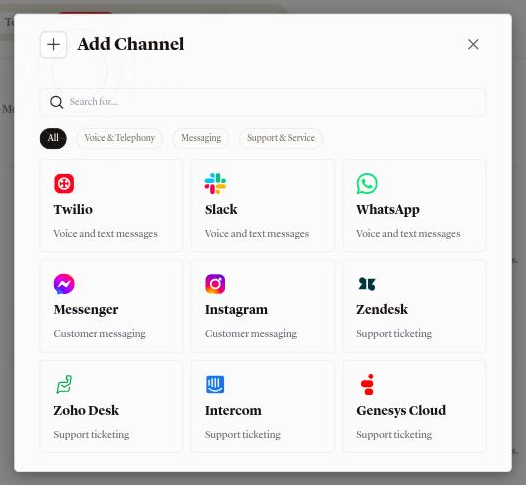
Open the agent and select Channels. The tab is headed Connected Channels. Press Add Channel and choose the Zendesk card under Support & Service; the card reads Support ticketing. The dialog Connect Zendesk Account opens on its Configure tab, beside Triggers.
Step 2: Fill in the Configure tab
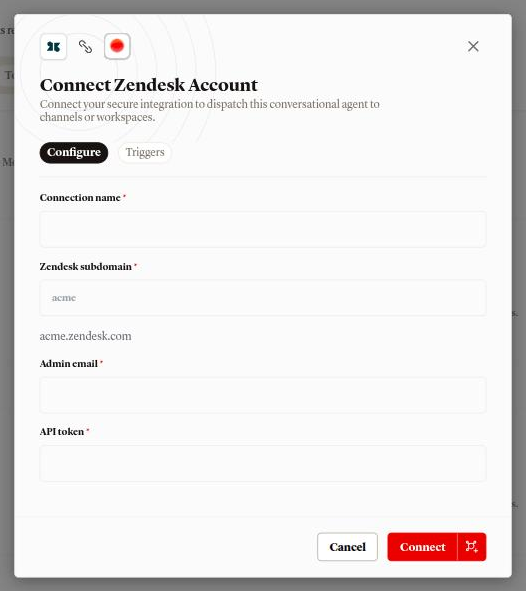
Four fields, all required:
- Connection name: what the row is called in the Channels list.
- Zendesk subdomain: the bare subdomain, for example
acme. The line under the field shows the address it resolves to,acme.zendesk.com. Letters, digits and hyphens only; it is saved in lower case. Anything else is refused with subdomain must be the bare subdomain, e.g. "acme". - Admin email: the Zendesk user the API token belongs to.
- API token: the token you created. The field hides what you type.
Connect stays disabled until all four have a value.
Step 3: Read the Triggers tab
The Triggers tab holds one card, New tickets, with the line Tickets on this Zendesk account reach the connected agent. There is nothing to choose; the card describes what connecting sets up.
Step 4: Press Connect
Connecting signs in to Zendesk with the email and token, reads the user, and creates three things in your Zendesk account:
- a webhook named
Echonova agent webhook; - a trigger
Echonova — route new tickets, which fires when a ticket is created; - a trigger
Echonova — route replies, which fires when a public comment is added to a ticket.
Both triggers skip any ticket that carries the tag echonova_escalated. Leave
the webhook and the triggers in place; they are what brings tickets to the
agent, and disconnecting removes them again.
On success a toast reads Channel connected and the row appears under
Support & Service with your Connection name, acme.zendesk.com under
Workspace, Zendesk under Routing, and the chip Active. A
failure shows an Error toast carrying the reason; see
Troubleshooting.
Get it right
Give the token a Zendesk user of its own. The agent's replies are posted as that user, and the agent recognises a comment from that user as one of its own, so a person answering from the same account is not seen as a person.
Recommended
- A user created for the agent, for example named after the agent, whose token nobody else uses. The requester sees the agent's replies under that name, and a public reply from anyone else on your team is recognised as a person stepping in.
Less effective
- Your own administrator account. Your replies on a ticket are then treated as the agent's own, the requester sees the agent's replies under your name, and the conversation on the Conversations tab is not closed when you step in.
Send the first message
Create a ticket the way a customer would, for example by emailing your support address: "Hi, my order 41822 hasn't arrived yet, can you check?" The trigger for new tickets fires, and the agent's reply is posted on the ticket as a public comment by the user whose token you entered, so the requester receives it the way they receive any public comment. Reply on the ticket as the requester and the agent answers again.
The agent uses the Personality you set on the Persona tab, plus the channel instruction and the ticket subject described in How the prompt is assembled. The Greeting message is not sent on a ticket; the agent's first message is its answer.
In the portal, open the agent's Conversations tab: the exchange is listed under Zendesk with the requester's name. Each reply is priced as a text turn; see What a turn costs.
If the workspace has no credits left, the requester's reply is recorded in the conversation and nothing is posted on the ticket. If a reply cannot be produced, the ticket receives the public comment "Sorry, I can't respond right now. Please try again shortly."
Provider limits that affect you
| Limit | Value | Effect |
|---|---|---|
| Connections per Zendesk account | 1 | A second connect of the same subdomain, in any EchoNova workspace, is refused with Zendesk account "acme" is already connected |
| Agents per connection | 1 | Use Assign to another agent to move it |
| Subdomain format | Letters, digits and hyphens, saved in lower case | Anything else is refused before connecting |
| What the agent answers | The latest public comment on the ticket | A reply that lands while the agent is still answering the previous one may get no answer of its own; the agent answers the requester's next reply |
| Internal notes | Not read | A private comment neither reaches the agent nor stops it |
| Content | Text in both directions | Attachments are not read; the agent posts text |
| Ticket idle gap | 24 hours | A reply after a longer silence starts a new conversation with no memory of the earlier one |
| Handoff tag | echonova_escalated |
The same on every helpdesk connection; it cannot be renamed |
Disconnect
Open the row's menu on the Channels tab and choose Disconnect, or open the channel's detail page, press Test and choose Disconnect from the menu. The dialog Disconnect channel? reads "This permanently deletes {name} and its saved credential. Reconnecting later starts a brand new connection." Confirm with Disconnect; the toast Channel disconnected follows.
Disconnecting closes the account's open conversations, deletes the saved
email and token, and removes the Echonova agent webhook and the two
Echonova — route … triggers from your Zendesk account. Reconnecting
creates a new connection and new triggers. Conversations already recorded
stay on the agent, and the echonova_escalated tag stays on the tickets
that carry it.
To keep the connection but stop this agent answering, choose Assign to another agent from the row's menu instead. Open conversations are closed and the next reply goes to the agent you picked.
Troubleshooting
Every connect failure is shown as an Error toast carrying the reason.
Invalid Zendesk credentials
Zendesk refused the Admin email and API token pair, or the Zendesk subdomain is not the account the token belongs to. Check all three and copy the token again.
Could not verify the Zendesk account
Zendesk answered, but not with the user. The toast carries Zendesk's own reason after the colon when there is one. A related message, Could not resolve the Zendesk API user, means the user came back without an id. Check the subdomain, then retry.
Failed to create the Zendesk webhook or routing trigger
The user behind the token is not allowed to create webhooks or triggers. The same cause shows as Could not read the Zendesk webhook signing secret or Zendesk webhook response was incomplete. Anything created before the failure is removed again. Use an administrator's email and token.
Could not reach Zendesk
The request did not get through. The toast carries the network reason after the colon. Retry.
The agent does not answer a ticket
Check, in this order:
- The ticket does not carry
echonova_escalated. While it does, the agent stays off it; remove the tag to hand the ticket back. - The latest public comment on the ticket is by the requester. A comment by anyone else on your team stops the agent for that reply, and an internal note is not read at all.
- The
Echonova agent webhookand bothEchonova — route …triggers still exist in Zendesk. If they were deleted, disconnect the channel and connect again. - The workspace has credits. With none left, replies are recorded and nothing is posted.
The ticket got "Sorry, I can't respond right now. Please try again shortly."
The agent could not produce a reply for that turn. The requester's message is kept in the conversation; the agent answers their next reply.
Pause Channel does nothing
Pause Channel on the channel's detail page does not stop the channel today. To stop the agent answering, disconnect the channel or assign it to another agent.
FAQ
Does the agent answer tickets that existed before I connected?
Yes. Any ticket without the echonova_escalated tag reaches the agent the
next time its requester adds a public reply. To keep a ticket away from the
agent, add the tag to it.
Who does the reply appear from?
The Zendesk user whose Admin email and API token you entered. Give the agent a user of its own; see Get it right.
What does the customer see when the agent hands off?
The agent's last reply, and then a person. The ticket is set to open,
unassigned, tagged echonova_escalated, and carries the internal note
Echonova agent escalated this ticket — full transcript is in the comment thread. for your team. Human handoff covers
how to write the trigger.
How do I give a ticket back to the agent?
Remove echonova_escalated from it. The agent answers the requester's next
public reply.
Can I rename the handoff tag?
No. Every helpdesk connection uses echonova_escalated. Build your Zendesk
views and business rules on that name.
Does the agent read the ticket subject?
Yes. The subject is given to the agent as context on every reply, so a requester who writes "any update?" is answered about the subject of the ticket.
Related
- Human handoff: what tagging the ticket does, and how to write the trigger
- How the prompt is assembled: the instruction the agent is given on a ticket
- Write the persona: the Personality the agent answers with
- Find and read a conversation: where ticket conversations are listed
- What a turn costs: what each reply is charged
- Channels overview: every channel side by side
- Agent status: pausing or archiving does not stop a connected channel