
Agents
Intercom
Connect an Intercom workspace with the credentials of your own Intercom app so an agent answers conversations as a teammate you choose, and hands a conversation to your team by tagging it.
Connect an Intercom workspace and an agent answers its conversations. Every new conversation a user starts and every reply they send reaches the agent, the agent answers as a teammate you choose, and when a person should take over it tags the conversation for your team, leaves a note, unassigns it and stops. You connect with the credentials of an app you create in your own Intercom workspace, and you point that app's webhook at EchoNova yourself.
What the agent can do on Intercom
| Capability | Supported |
|---|---|
| Voice | No |
| Text | Yes |
| Inbound | Yes. A new conversation from a user, and each reply from the user, as long as the app's webhook sends them |
| Outbound | Replies only, posted as the teammate whose Admin ID you entered. The agent does not start conversations |
| Handoff | Yes. The agent tags the conversation echonova_escalated, leaves a note, unassigns it and stops replying |
| Media | No. The agent reads the text of the message and replies in text; attachments are not read |
A conversation is written like a support ticket: the agent answers in a formal tone, without emoji, and sees the conversation's subject as context when it has one. The exact instruction the agent is given on this channel is in How the prompt is assembled. An Intercom conversation is one conversation on the agent's Conversations tab for as long as replies keep coming; a reply that arrives more than 24 hours after the last one starts a new conversation on the same Intercom thread, and the agent does not carry the earlier exchange into it.
Prerequisites on the provider side
- An Intercom workspace, and an app created in its Developer Hub. From the app you need its Access token, under Configure → Authentication (see Intercom: Authentication), and its Client secret, under Basic information. The token is used to read and answer conversations; the client secret is used to check that each delivery from the app's webhook is genuine.
- The numeric Admin ID of the teammate the agent replies as, from Settings, then Teammates, in Intercom. Connecting checks that the id exists in the workspace. Give the agent a teammate of its own; see Get it right below.
- Optional: the id of an Intercom team, to pilot the agent on one inbox. With a Team inbox ID set, the agent answers only conversations assigned to that team.
- The app's webhook, which you set after connecting. It sends to the
address in Step 4 and subscribes to the topics
conversation.user.createdandconversation.user.replied. - The workspace is not already connected. An Intercom workspace can be connected once, in one EchoNova workspace; a second attempt is refused with This Intercom workspace is already connected.
Connect
Step 1: Open the Channels tab and choose Intercom
Open the agent and select Channels. The tab is headed Connected Channels. Press Add Channel and choose the Intercom card under Support & Service; the card reads Support ticketing. The dialog Connect Intercom Account opens on its Configure tab, beside Triggers.
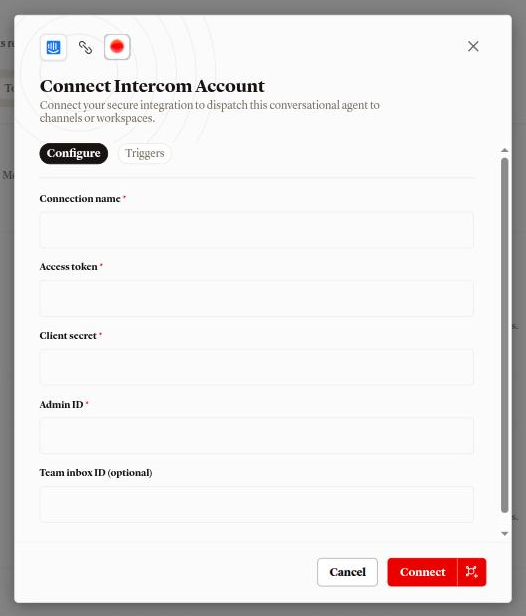
Step 2: Fill in the Configure tab
- Connection name: what the row is called in the Channels list. Required.
- Access token: from your app. Required; the field hides what you type.
- Client secret: from your app. Required; the field hides what you type.
- Admin ID: the numeric id of the teammate the agent replies as. Required.
- Team inbox ID (optional): an Intercom team id. Leave it blank to answer every conversation.
Connect stays disabled until the four required fields have a value.
The Triggers tab holds one card, New conversations, with the line Conversations in this Intercom workspace reach the connected agent. There is nothing to choose; the card describes what the webhook delivers.
Step 3: Press Connect
Connecting checks the token against your workspace and checks that the
Admin ID is one of its teammates. Nothing is created in Intercom. On
success a toast reads Channel connected and the row appears under
Support & Service with your Connection name, Intercom workspace
followed by the workspace's id under Workspace, Intercom under
Routing, and the chip Active. A failure shows an Error toast
carrying the reason; see Troubleshooting.
Step 4: Point the app's webhook at EchoNova
Until the webhook is set, no conversation reaches the agent. In your app in
the Developer Hub, open its Webhooks section, set the endpoint to the
address below, and subscribe to conversation.user.created and
conversation.user.replied:
https://api.echonova.ai/intercom/webhookEvery delivery is checked against the Client secret you entered. If you regenerate the secret in Intercom later, disconnect the channel and connect again with the new one; deliveries signed with the old secret are refused.
Get it right
Give the agent a teammate of its own. The agent replies as the teammate behind Admin ID, and a reply from any other teammate is read as a person taking over, after which the agent stays off that conversation for good. A reply from the teammate behind Admin ID is read as the agent's own.
Recommended
- A teammate created for the agent, for example named after it, that nobody on your team replies as. When someone on your team answers a conversation, the agent steps back from it and stays back.
Less effective
- Your own teammate id. Your replies are then read as the agent's own, so the agent keeps answering the user after you have stepped in, and the user sees the agent's replies under your name.
Send the first message
Start a conversation as a user, for example from the Intercom Messenger on your own site: "Hi, my order 41822 hasn't arrived yet, can you check?" The webhook delivers it, and the agent's reply appears in the conversation from the teammate behind Admin ID. Reply as the user and the agent answers again.
The agent uses the Personality you set on the Persona tab, plus the channel instruction described in How the prompt is assembled. The Greeting message is not sent; the agent's first message is its answer.
In the portal, open the agent's Conversations tab: the exchange is listed
under Intercom with the user's name, or as Ticket requester followed by
# and the last four characters of the conversation id when no name is
provided. Each reply is priced as a text turn; see
What a turn costs.
If the workspace has no credits left, the user's message is recorded in the conversation and nothing is posted in Intercom. If a reply cannot be produced, the user receives "Sorry, I can't respond right now. Please try again shortly."
Provider limits that affect you
| Limit | Value | Effect |
|---|---|---|
| Connections per Intercom workspace | 1 | A second connect of the same workspace, in any EchoNova workspace, is refused with This Intercom workspace is already connected |
| Agents per connection | 1 | Use Assign to another agent to move it |
| Teammate the agent replies as | 1, set when you connect | To change it, disconnect and connect again with the new Admin ID |
| Admin ID and Team inbox ID | Up to 64 characters each | Longer values are refused |
| Conversations answered with a Team inbox ID | Those assigned to that team | Every other conversation is left alone |
| A reply from another teammate | Stops the agent on that conversation for good | The agent answers that user again in their next new conversation |
| Content | Text in both directions | Attachments are not read; the agent posts text |
| Conversation idle gap | 24 hours | A reply after a longer silence starts a new conversation with no memory of the earlier one |
| Handoff tag | echonova_escalated |
Checked on the conversation before every reply, whatever its letter case; it cannot be renamed |
Disconnect
Open the row's menu on the Channels tab and choose Disconnect, or open the channel's detail page, press Test and choose Disconnect from the menu. The dialog Disconnect channel? reads "This permanently deletes {name} and its saved credential. Reconnecting later starts a brand new connection. Also remove the EchoNova webhook in your Intercom Developer Hub. We can't remove it for you." Confirm with Disconnect; the toast Channel disconnected follows.
Disconnecting closes the workspace's open conversations and deletes the
saved access token and client secret. Reconnecting creates a new
connection. Conversations already recorded stay on the agent, and the
echonova_escalated tag stays on the conversations that carry it.
Nothing changes in Intercom: the app and its webhook stay. Deliveries from the webhook are refused once the channel is disconnected; remove the webhook from the app if you no longer want it sending. To keep the connection but stop this agent answering, choose Assign to another agent from the row's menu instead. Open conversations are closed and the next reply goes to the agent you picked.
Troubleshooting
Every connect failure is shown as an Error toast carrying the reason.
Intercom token is invalid or lacks access
Intercom refused the Access token, or the token cannot read the workspace. Copy the token from the app again.
That admin id was not found in this Intercom workspace
The Admin ID is not the id of a teammate in the workspace the token belongs to. Copy the numeric id from Settings, then Teammates.
This Intercom workspace is already connected
The workspace is connected already, in this EchoNova workspace or another one. Disconnect it there first. To move it between two of your own agents, use Assign to another agent on the existing row instead of connecting again.
The agent does not answer a conversation
Check, in this order:
- The app's webhook points at the address in Step 4 and subscribes to
conversation.user.createdandconversation.user.replied. - The Client secret you entered is the app's current one. After a regeneration, disconnect and connect again.
- The conversation does not carry
echonova_escalated. While it does, the agent stays off it; remove the tag to hand it back. - No teammate other than the one behind Admin ID has replied in the conversation. Once one has, the agent stays off that conversation.
- With a Team inbox ID set, the conversation is assigned to that team.
- The workspace has credits. With none left, messages are recorded and nothing is posted.
The agent kept answering after a teammate replied
The teammate who replied is the one behind Admin ID, so the reply was read as the agent's own. Give the agent a teammate of its own; see Get it right.
The user got "Sorry, I can't respond right now. Please try again shortly."
The agent could not produce a reply for that turn. The user's message is kept in the conversation; the agent answers their next reply.
Pause Channel does nothing
Pause Channel on the channel's detail page does not stop the channel today. To stop the agent answering, disconnect the channel or assign it to another agent.
FAQ
Does the agent answer conversations that were open before I connected?
Yes, from the user's next reply, as long as no teammate other than the one
behind Admin ID has replied in the conversation and it does not carry
echonova_escalated.
Can I try the agent on one inbox first?
Yes. Route a slice of conversations to a dedicated Intercom team and enter that team's id as Team inbox ID (optional). Conversations assigned anywhere else are left alone.
What does the user see when the agent hands off?
The agent's last reply, and then a person. The conversation is tagged
echonova_escalated, unassigned so it returns to the inbox, and carries the
note Echonova agent escalated this ticket — full transcript is in the comment thread. for your team. Human handoff
covers how to write the trigger.
How do I give a conversation back to the agent?
Remove echonova_escalated from it. If a teammate has replied in it, the
agent still stays off that conversation; the user's next new conversation
reaches the agent.
Can I change the teammate the agent replies as?
Not on a connected channel. Disconnect the channel and connect again with the new Admin ID.
Can I rename the handoff tag?
No. Every helpdesk connection uses echonova_escalated. Build your Intercom
views and inbox rules on that name.
Related
- Human handoff: what tagging the conversation does, and how to write the trigger
- How the prompt is assembled: the instruction the agent is given on a support conversation
- Write the persona: the Personality the agent answers with
- Find and read a conversation: where Intercom conversations are listed
- What a turn costs: what each reply is charged
- Channels overview: every channel side by side
- Agent status: pausing or archiving does not stop a connected channel