
Agents
Slack
Install the EchoNova app in a Slack workspace so people there can talk to an agent by direct message, by mentioning it in one channel, or both.
Connecting Slack installs the EchoNova app in a Slack workspace and puts an agent behind it. People in that workspace talk to the agent in two ways you switch on separately: a direct message to the app, and a mention of the app in one channel you choose. Every exchange is recorded as a conversation on the agent, and each reply is charged as a text turn.
What the agent can do on Slack
| Capability | Supported |
|---|---|
| Voice | No |
| Text | Yes |
| Inbound | Yes. A direct message to the app, or a message that mentions the app in the channel you bound |
| Outbound | Yes, as a reply. In the channel the reply goes in a thread under the message that mentioned the app; in a direct message it goes inline |
| Handoff | No |
| Media | No. Text only in both directions; a message with no text, such as a file or image on its own, gets no reply |
A direct message is one continuous conversation between that person and the
agent. In the channel, every thread is its own conversation: the first mention
opens it, and later messages in that thread that mention the app continue it.
A conversation keeps going while the gap between messages stays under 24
hours; the next message after a longer silence starts a new one. In
Conversations the person appears under their Slack display name, or as
Slack conversation followed by # and the last four characters of the
conversation id when the name cannot be read. Messages from other apps and
bots are not answered, and a message Slack delivers twice is answered once.
Prerequisites on the provider side
- A Slack workspace, and a Slack account that is allowed to add apps to it. The dialog's How To Connect tab puts it as "The user installing the app must have permission to add apps to the target Slack workspace."
- The app asks Slack for five permissions on install: to post messages
(
chat:write), to read the direct messages sent to it (im:history), to receive mentions (app_mentions:read), to join public channels on its own (channels:join) and to add or remove emoji reactions (reactions:write). - To bind a channel: its Channel ID, which starts with
C. In Slack, open the channel, open its details, and copy the Channel ID at the bottom of the About section. - To bind a private channel: someone in the channel must invite the app with
/invite @EchoNovaafter you save; the app cannot join a private channel by itself. - A Slack workspace belongs to one EchoNova workspace at a time. If it is already connected in another one, connecting fails with That Slack workspace is already connected to a different EchoNova workspace.
Connect
Step 1: Open the agent's Channels tab
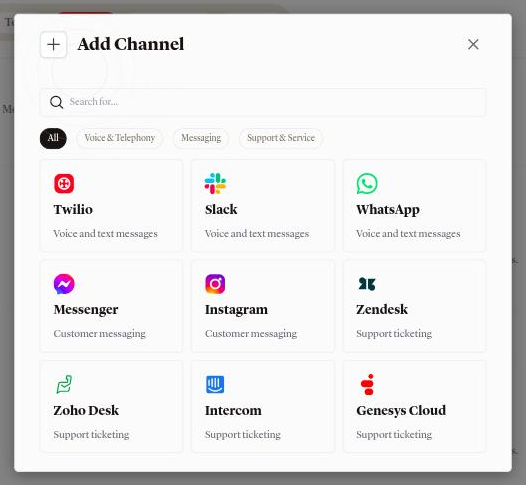
Open the agent and choose Channels. The tab is headed Connected Channels. Press Add Channel and choose the Slack card under Messaging. The card reads Voice and text messages; on Slack the agent answers in text. The dialog Connect Slack Account opens on its Configure tab, beside Triggers, Tools and How To Connect.
Step 2: Name the connection and start the install
- Name: what the row is called in the Channels list. Required.
- Credential: Bot OAuth, the only choice.
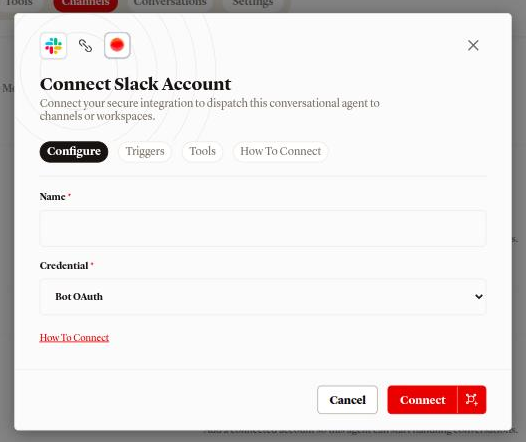
The Triggers tab describes the two ways in: Channel Message, "Someone @mentions the bot in a channel it was added to.", and Direct Message, "A direct message is sent to the bot." You choose between them after the install.
Press Connect. The portal sends you to Slack in the same window. Pick the workspace, approve the five permissions, and Slack returns you to the agent's Channels tab. The sign-in link is valid for 10 minutes.
Step 3: Read the outcome
| Toast or dialog | What happened | What to do |
|---|---|---|
| Slack connected, then the Select Channels dialog | The workspace is connected and bound to this agent | Choose the triggers in the dialog (Step 4) |
| This channel was already connected. It's now linked to this agent. | The workspace was already connected here, without an agent or to this agent. It is bound to this agent now; triggers saved earlier are kept, and a connection that never had any has none | Open the row's menu and choose Edit triggers to check the triggers |
| Move this channel? | The workspace is connected to another agent here | Move binds it to this agent and closes its open conversations; Cancel leaves it where it is |
| Access was declined. No changes were made. | You cancelled on Slack's authorization screen | Connect again and approve |
| The connection didn't complete. Please try again. | Slack did not hand over a usable install | Connect again |
| No message. You land on the Agents list with nothing connected | More than 10 minutes passed, the link was used already, or the sign-in finished in a different browser from the one that started it | Open the agent again and start from its Channels tab |
| That Slack workspace is already connected to a different EchoNova workspace. | The workspace belongs to another EchoNova workspace | Disconnect it there first |
The row shows the Slack workspace's name under Workspace and Slack under Routing.
Step 4: Choose where the agent listens
The Select Channels dialog reads "Configure which Slack streams this agent will monitor and route." It holds three controls:
- Direct Messages, a checkbox, "Respond when users message the bot directly." On when the dialog opens.
- Response in all, selected when the dialog opens.
- Specific channel, with the note that you enter the channel ID manually
and the app responds to mentions there. Choosing it shows a Channel ID
field with the example
C0123ABCDEF.
Response in all binds no channel: with it selected the agent answers direct messages only. To have the agent answer in a channel, choose Specific channel and enter that channel's ID. One connection binds one channel.
A Channel ID is accepted when it starts with C followed by at least six
capital letters or digits. Anything else shows This does not look like a valid Slack
channel ID. with the path to find it, and Confirm Connect stays disabled.
The button also stays disabled while neither Direct Messages nor a valid
channel is selected.
Press Confirm Connect. With no channel bound the toast reads Slack triggers saved. With a channel bound, the app tries to join it and the toast tells you how that went:
| Toast | What it means | What to do |
|---|---|---|
| EchoNova joined the channel. Mention @EchoNova there and it'll reply. | The channel is public and the app is in it | Mention the app in the channel |
| Starts This looks like a private channel | The app cannot add itself to a private channel | In the channel, type /invite @EchoNova once |
| Starts Couldn't find that channel. | No channel with that ID is visible to the app | Check the ID, or type /invite @EchoNova in the channel |
| Starts Slack needs reconnecting to auto-join channels. | The install lacks the permission to join channels, or Slack no longer accepts it | Run Add Channel, choose Slack and press Connect again; the existing connection and its triggers are kept and its permissions refreshed. Or invite the app by hand |
| Saved. If the bot stays quiet, type /invite @EchoNova in the channel. | The join did not complete for another reason | The triggers are saved; invite the app by hand if it does not answer |
The triggers are saved in every case; only the join is best effort.
Step 5: Change the triggers later
Open the row's menu on the Channels tab and choose Edit triggers. The same Select Channels dialog opens with the current settings filled in. On a Slack row the Conversations figure counts the triggers switched on for this agent, not conversations.
The channel's detail page has a Routing & Behavior tab with a Route incoming messages select and Agent behavior controls. Those controls change nothing today; the triggers that count are the ones saved through Edit triggers.
Get it right
Decide where the agent should be reachable before you save the triggers.
Recommended
- Direct Messages on, plus Specific channel with the ID of a channel set up for the agent. People get private help by direct message, and the team sees the agent's answers in threads in one place.
Less effective
- Response in all, expecting the agent to answer in every channel. It binds no channel, so the agent answers direct messages only.
Send the first message
In Slack, open Apps, choose EchoNova, and send it a message such as "What are our opening hours?". The agent replies in the same direct message thread. In the bound channel, type a message that mentions the app, for example "@EchoNova what are our opening hours?"; the agent replies in a thread under your message, and later mentions inside that thread continue the same conversation. A mention with no text after it gets no reply.
The agent uses the Personality you set on the Persona tab. The Greeting message is not sent on Slack; the agent's first message is its answer.
In the portal, open the agent's Conversations tab: the exchange is listed under the Slack channel with the person's display name. The channel's own detail page, opened from its row on the Channels tab, counts it under Conversations and Messages and lists it on the Conversations section. Each reply is priced as a text turn; see What a turn costs.
If the workspace has no credits left, the person's message is recorded in the conversation and no reply is sent. If a reply cannot be produced, the person receives "Sorry, I can't respond right now. Please try again shortly."
Provider limits that affect you
| Limit | Value | Effect |
|---|---|---|
| Slack workspaces per connection | 1 | Connect each workspace separately |
| EchoNova workspaces per Slack workspace | 1 | A workspace connected elsewhere must be disconnected there first |
| Agents per connection | 1 | Use Assign to another agent to move it |
| Channels per connection | 1 | Pick the channel where mentions should be answered |
| Channel ID format | C plus at least six capital letters or digits |
Anything else is refused before saving |
| Channel messages answered | Mentions of the app only | A message in the channel that does not mention the app is not read |
| Message content | Text in both directions | A message with no text is not answered; the agent sends no files or reactions |
| Conversation gap | 24 hours | A message after a longer silence opens a new conversation |
| Sign-in link | 10 minutes | Finish the Slack authorization within that time, once, in the browser that started it |
Disconnect
Open the row's menu on the Channels tab and choose Disconnect, or open the channel's detail page, press Test and choose Disconnect from the menu. The dialog Disconnect channel? reads "This permanently deletes {name} and its saved credential. Reconnecting later starts a brand new connection." Confirm with Disconnect; the toast Channel disconnected follows.
Disconnecting closes the workspace's open conversations, removes the connection and its triggers, and deletes the saved install token. Reconnecting starts a new connection and a new Select Channels step. The conversations already recorded stay on the agent.
Disconnecting also revokes EchoNova's access in the Slack workspace, so the bot can no longer read or post there. The app can still appear in the workspace's app list; remove it from Slack if you want it gone. To keep the connection but stop this agent answering, choose Assign to another agent from the row's menu instead. Open conversations are closed and the next message goes to the agent you picked.
Troubleshooting
The agent stays quiet in the channel
Check, in this order:
- The message mentions the app. A plain message in the channel is not read.
- There is text after the mention.
- The channel's ID is the one saved under Edit triggers. The agent answers mentions in that one channel only.
- The app is in the channel. In a private channel it has to be invited with
/invite @EchoNova. - The triggers are not Response in all alone; that setting answers direct messages only.
- The workspace has credits. With none left, messages are recorded and no reply goes out.
The agent stays quiet in direct messages
Direct Messages is off for this connection. Open the row's menu, choose Edit triggers, tick Direct Messages and press Confirm Connect.
The agent went quiet after "This channel was already connected"
That path binds the connection to the agent and keeps whatever triggers it had, which for a connection that never had any is none. Open the row's menu, choose Edit triggers, and save the triggers you want.
The reply appeared in a thread, not in the channel
That is how channel replies work. The agent answers a mention in a thread under the message that mentioned it, and the thread is the conversation.
The person got "Sorry, I can't respond right now. Please try again shortly."
The agent could not produce a reply for that turn. The message is kept in the conversation; ask the person to send it again.
Pause Channel does nothing
Pause Channel on the channel's detail page does not stop the channel today. To stop the agent answering, disconnect the channel or assign it to another agent.
FAQ
Can the agent answer in more than one channel?
No. A connection binds one channel, and a Slack workspace has one connection. Pick the channel where mentions should be answered, and use direct messages for everything else.
Can two agents share one Slack workspace?
No. A Slack workspace is one connection, and a connection answers for one agent. Move it with Assign to another agent.
Does the agent read messages it is not mentioned in?
No. It receives direct messages sent to it and messages that mention it in the bound channel, and nothing else.
Can the agent react to messages with emoji?
The connect dialog's Tools tab lists four cards: Direct Message, Add reaction, Remove reaction and Read thread. The Add Tool menu offers no Slack actions today, so an agent in Slack replies with text and adds no reactions.
Is a direct message conversation shared with a channel thread?
No. Each direct message exchange and each channel thread is its own conversation, with its own history and its own row in Conversations.
Related
- Test your agent: check the agent's answers before you install it in a workspace
- Persona: the Personality text the agent uses on every channel
- How the prompt is assembled: what the agent reads on a text conversation
- Conversations: where Slack conversations are listed and read
- What a turn costs: what each reply is charged
- Tools overview: the tool kinds an agent can call
- Agent status: archiving does not stop a connected channel