
Agents
Genesys Cloud chat
Connect a Genesys Cloud organization so an agent can answer as a bot inside your message flows, and hand the conversation back to a queue when a person is needed.
Connect a Genesys Cloud organization and your agents become bots that a
Genesys message flow can call. Each message the flow passes to the bot is
answered by the agent in the same exchange, and when the agent decides a
person should take over it returns the conversation to the flow with the
escalate intent, so the flow can route it to a queue. Phone calls through
Genesys are a separate trigger; see
Genesys Cloud voice.
What the agent can do on Genesys Cloud chat
| Capability | Supported |
|---|---|
| Voice | See Genesys Cloud voice |
| Text | Yes |
| Inbound | Yes. Every message a Genesys flow sends to the bot |
| Outbound | Replies only, returned to the flow that sent the message. The agent does not start a Genesys conversation |
| Handoff | Yes. The agent ends its turn with the escalate intent and stops replying |
| Media | No. Text, and a button press read as its text or payload |
Prerequisites on the provider side
- A Genesys Cloud organization in one of the seventeen regions the Region list offers, from US East (us-east-1) to Sydney (ap-southeast-2). Connecting signs in at the login host of the region you pick, so the region must match the organization.
- An OAuth client in that organization with the Client Credentials grant, created from Menu → IT and Integrations → OAuth → Add client, with Client Credentials picked under Grant Types. See Genesys Cloud: Create an OAuth client. Its OAuth Client ID and OAuth Client Secret are shown on the client once it is saved; the secret is not shown again. Connecting signs in with the pair and reads the organization's name and id.
- The Bot Connector feature enabled on the organization, and a role on the
OAuth client that grants
integration:botconnector:edit. Pushing your agents to Genesys as a bot list needs it. - The organization must not already be connected in EchoNova. One organization can be connected once.
Connect
Step 1: Open the Channels tab and choose Genesys Cloud
Open the agent and select Channels. Press Add Channel. The catalog lists Genesys Cloud under Support & Service with the line Support ticketing. Select it.
Step 2: Fill in the Configure tab
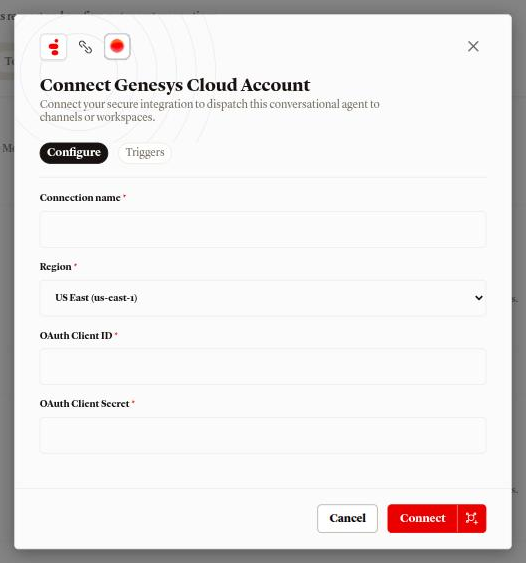
The dialog is titled Connect Genesys Cloud Account. Its Configure tab takes four fields, all required:
- Connection name: the label shown in the Channels list, for example
Acme CX org. - Region: the organization's region. The list opens on US East (us-east-1).
- OAuth Client ID: from the OAuth client you created in Genesys Cloud.
- OAuth Client Secret: from the same client. The field hides what you type.
Connect stays disabled until all four have a value.
Step 3: Read the Triggers tab
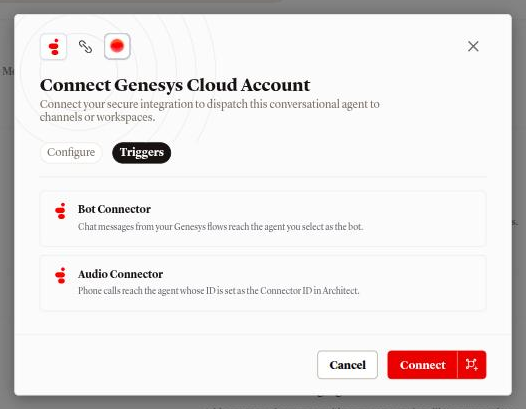
The Triggers tab holds two cards. Bot Connector reads Chat messages from your Genesys flows reach the agent you select as the bot. Audio Connector reads Phone calls reach the agent whose ID is set as the Connector ID in Architect.; that one is covered in Genesys Cloud voice.
Step 4: Press Connect
Connecting signs in to Genesys Cloud with the client, reads your organization, and saves the connection. On success a toast reads Channel connected and the row appears under Support & Service with your Connection name, the organization's name under Workspace, Genesys Cloud under Routing, and the chip Active.
Step 5: Point Genesys at the connection
A Bot Connector integration in Genesys Cloud is given three values that belong
to the connection: a Handle Utterance URI, a Header name and a
Header value (bot token). Your agents then reach Genesys as a bot list,
one bot per agent that is not archived, through Sync bots with the
Bot Connector integration ID from Genesys. In Architect, a Call Bot
Connector action in a message flow picks one of those bots and branches on
the escalate intent.
The Connections view shows all of this. Open the agent and add
?tab=connections to its address in the browser's address bar, press the
more button on the Genesys Cloud row, and open the How to connect tab:
- Install the Genesys Bot Connector integration in Genesys Cloud, then paste the Handle Utterance URI and the Header name into it. The Header value (bot token) shows only its last four characters. Press Generate token to get a new one; it is shown once, and the old token stops working at once, so paste the new one into your Bot Connector.
- Paste the Bot Connector integration's id into Bot Connector integration ID and press Sync bots. A toast reads Changes saved.
- In Architect, add a Call Bot Connector action to a message flow, pick
the agent as the bot, and branch on the
escalateintent.
How a conversation works
Every message the flow passes to the bot is answered inside that same exchange: the agent's reply travels back to the flow, and nothing is sent to Genesys at any other time.
- The bot chosen in the Call Bot Connector action decides which agent
answers. Every agent in the workspace that is not archived is offered as a
bot, registered with the language
en-usand the intentssuccessandescalate. - A button press arrives as the button's payload, or its text when it has no payload, and is read as the customer's message.
- A message with no text gets no reply, and the bot waits for the next one.
- One conversation covers one Genesys bot session. After 24 hours without a message the next one starts a new conversation.
- The conversation appears in the agent's Conversations tab with the channel Genesys and the Genesys bot session id in place of a customer name.
A short note is added to the agent's instructions on this channel, asking for short conversational replies and naming the handoff marker. The exact text is in How the prompt is assembled.
Hand the conversation to a person
Write the trigger into Personality: when the customer asks for a person, or when the agent cannot help, hand over. The channel note tells the agent how to signal it, so you name the moment, not the mechanism.
Recommended
If the customer asks for a person, or asks the same thing a third time, hand the conversation over.Less effective
Escalate difficult cases.When the agent hands over, its last reply is still delivered, the reply
carries the escalate intent back to the flow, and the conversation closes:
it shows as Resolved in Conversations and the agent sends nothing more
on it. What happens next is your flow's escalate branch, which is where you
route the customer to a queue. Nothing is tagged on the Genesys side.
A Personality that tells the agent it must always answer, or must never end a conversation, stops the handoff firing. Check the wording against the channel note in How the prompt is assembled.
Provider limits that affect you
| Limit | Value | Effect |
|---|---|---|
| Connections per organization | 1 | A second connect of the same organization, in any EchoNova workspace, is refused with This Genesys organization is already connected |
| Bot language | en-us |
Every agent is registered in Genesys with that language. The language the agent replies in is set by its Personality |
| Idle time before a new conversation | 24 hours | A message after that gap starts a new conversation with no memory of the old one |
Disconnect
Open the row's actions menu and choose Disconnect. The dialog Disconnect channel? names the connection and reads This permanently deletes Acme CX org and its saved credential. Reconnecting later starts a brand new connection. A toast reads Channel disconnected.
Open conversations on the channel are closed, and the OAuth client credentials are removed from EchoNova. Nothing changes in Genesys Cloud: the OAuth client, the Bot Connector integration and the bot list stay until you remove them there.
Troubleshooting
Every connect failure is shown as an Error toast carrying the reason.
Invalid Genesys credentials
Genesys Cloud refused the OAuth Client ID and OAuth Client Secret, or the sign-in went to the wrong region. Check that Region matches the organization, that the client uses the Client Credentials grant, and copy the secret again.
Could not verify the Genesys organization
The client signed in, but the organization could not be read with it. Check the client's role, then retry.
This Genesys organization is already connected
The organization is connected already, in this workspace or another one. Disconnect it there first. To move it between two of your own agents, use Assign to another agent on the existing row instead of connecting again.
Genesys reports the bot failed with NoReply
The agent produced no reply. The usual cause is an empty credit balance: on
this channel an unaffordable turn returns no message, and Genesys receives
the failure NoReply with the text The agent produced no reply. Top up
the workspace.
Genesys reports the bot failed with BadRequest
The bot the flow called is not one of your agents. The message reads botId/botSessionId missing or invalid. Pick a bot from the synced list in the Call Bot Connector action.
FAQ
Which agent answers a Genesys conversation?
The bot the flow picks in its Call Bot Connector action. Every agent in the workspace that is not archived is offered as a bot, so one connection can serve several agents from different flows. The agent whose Channels tab lists the connection is where the row lives, not the only agent that answers.
Does the agent know who the customer is?
No name reaches the agent. The conversation carries the Genesys bot session id in place of a name.
Does handing over tag or assign anything in Genesys?
No. The reply carries the escalate intent, and your flow's escalate branch
decides the queue. Helpdesk channels tag the ticket instead; see
Human handoff.
Can the agent reply in Arabic?
Yes. The bot is registered with the language en-us, and the reply language
is whatever Personality says. See
How the prompt is assembled.
Does archiving an agent remove its bot from Genesys?
An archived agent is left out of the bot list the next time Sync bots runs. A flow that still names it as a bot keeps calling it, and it keeps answering; see Agent status.
Related
- Genesys Cloud voice: the Audio Connector trigger on the same connection
- Human handoff: what handing over means on each channel that supports it
- Channels overview: every channel side by side
- How the prompt is assembled: the note added on this channel and the handoff marker
- Write the persona: where the handoff trigger is written
- Conversations: where the chat lands
- Agent status: what archiving does to a connected channel