
Account and billing
Sign-in methods
Create an account with email and password, Google or Microsoft, verify your email with the 6-digit code, and reset a forgotten password.
An EchoNova account signs in one of three ways: with an email address and a password, with Google, or with Microsoft. You choose the method when you create the account, and that method is the one the account keeps. When you finish this page you will have an account you can sign in to, and you will know how to verify its email, what happens when an email already belongs to an account, and how to get back in when you have forgotten the password.
What you need
- An email address you can read, for the verification code or for the Google or Microsoft account you sign in with.
- A browser that lets the portal open a small window, if you choose Google or Microsoft. If the browser blocks it, the sign-in continues on the same tab; see Step 3.
Steps
Step 1: Choose a method
Open the sign-in page. It offers Email or Username and Password with a Sign in button, then Continue with Google and Continue with Microsoft, and the link Create account.
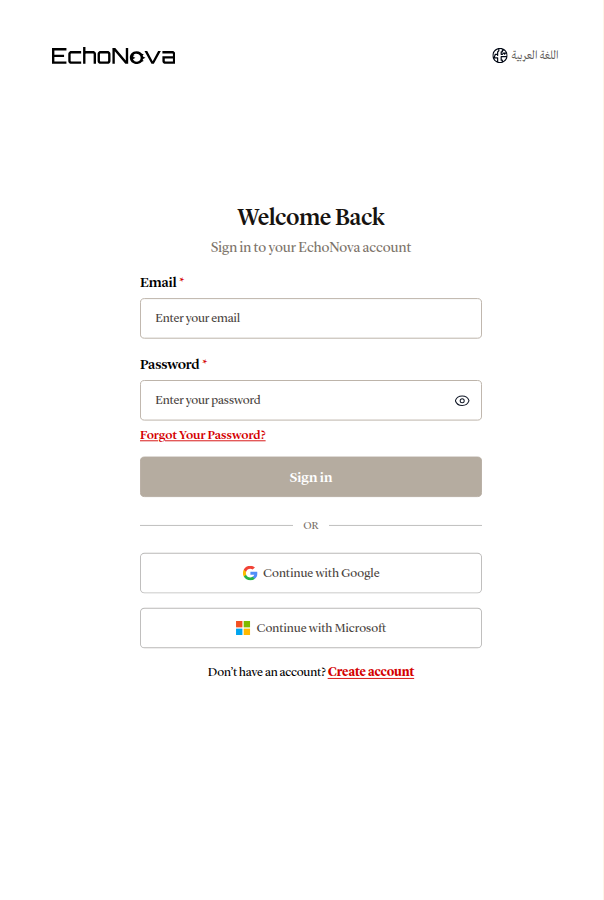
Pick the method you will keep. An account is bound to the method it was created with, and the same email address cannot be used to create a second account with a different one. Google and Microsoft accounts need no email verification and have no EchoNova password; email accounts have both.
Step 2: Create an account with email
Select Create account. The Create Your Account form asks for:
| Field | Rule |
|---|---|
| Username | At least 3 characters. Lowercase letters, numbers, hyphens, underscores and periods only; the portal lowercases it for you. |
| Full Name | At least 2 characters. |
| A valid email address. It becomes the account's fixed address. | |
| Password | Every rule in the checklist that appears under the field as you type. |
The password checklist is the rule set, and it is the same set that applies when you reset a password later:
- At least 8 characters
- One uppercase letter
- One lowercase letter
- At least one number
- At least one special character
A special character is anything that is not a letter, a digit or a space.
Press Create Account. By doing so you agree to the Terms of Service and the Privacy Policy, as the line under the button says. The portal then shows OTP sent to your email with your address and the text We've sent a verification code to your email. If you don't see it within 5 minutes, please check your spam or click resend.
Now verify the email:
- Open the message with a subject like 123456 is your EchoNova code; the six digits come first. It greets you by your full name, shows a 6-digit code, and says the code works for the next day.
- Select Open the verify page in the message. It opens the portal's Confirm Your Email page for your account.
- Type the six digits into the OTP boxes. Typing or pasting fills them left to right. Verify Email enables when all six are in.
- Press Verify Email. The page reads Email Verified! and offers Go to Sign In, which opens the sign-in page with the message Your account has been verified. You can now sign in.
Until the code is accepted, the account cannot sign in. If the message has not arrived, press Resend on either page; the button counts down 60 seconds between sends. A resend replaces the earlier code.
Step 3: Continue with Google or Microsoft
Press Continue with Google or Continue with Microsoft on the sign-in or sign-up page. A small window opens on the provider's own sign-in. Choose the account there; the window closes on its own and the portal finishes the sign-in.
- The first time, this creates your EchoNova account from the provider's details: your name and email as the provider reports them. There is no verification code to enter.
- Every later time, it signs you in.
- Closing the window before choosing an account cancels quietly, with no message.
If your browser blocks the window, the portal continues on the same tab instead: the provider's page opens in place, then returns you to the portal.
Step 4: Sign in with email and password
On the sign-in page, enter your email address in Email or Username (the field accepts your username as well), enter Password, and press Sign in. The eye icon shows or hides the password.
If two-factor authentication is on for the account, the next screen is Two-factor authentication; see Two-factor authentication.
Step 5: Reset a forgotten password
- Select Forgot Your Password? under the password field. If you had typed your email on the sign-in page, it is carried across.
- On Forgot your password?, enter Email or Username and press Send reset link. The page answers If an account exists, we sent a reset link. Check your inbox. whether or not the address has an account.
- Open the message with the subject Let's get you back in and select Pick a new password in it. There is no code to type: the link works once, and the message says it works for the next hour.
- On Reset Your Password, enter New Password, watching the same checklist as at sign-up, then Confirm New Password. A mismatch shows Passwords do not match. under the second field.
- Press Reset Password. The page reads Password Reset! and offers Go to Sign In, which opens the sign-in page with the message Your password has been reset successfully! You can now sign in with your new password. and your identifier already filled in.
A reset request for an account that signs in with Google or Microsoft sends a different message, with the subject Good news: no password to remember, which says that the account signs in with that provider and offers a Sign in with Google button (or Sign in with Microsoft). That is the answer to "which method did I use?" when you are not sure.
Get it right
Choose a password that the checklist accepts on the first try, and that you will not reuse elsewhere.
Recommended
Umbrella-7-CairoLess effective
password1The second fails two rules, no uppercase letter and no special character, and Create Account stays disabled until all five are green.
Worked example
Sara creates an account with Username sara.ahmed, Full Name
Sara Ahmed, her work email, and a password that turns all five rules green.
She presses Create Account and sees OTP sent to your email. A minute
later, the message 123456 is your EchoNova code arrives, with her own digits,; she reads the six
digits in it, types them on Confirm Your Email, and sees Email
Verified!. Go to Sign In takes her to the sign-in page, she signs in, and
the portal opens.
What happens next
The first sign-in of a new account opens a short three-question survey: how you heard about EchoNova, which description fits you best, and what you want to do. Answer each and press Start; the portal opens on Home. Every later sign-in goes straight to Home, or to the page you were trying to reach.
A sign-in lasts up to 7 days without use, and at most 30 days before you sign in again; using the portal keeps it alive until then. An account created with Google or Microsoft shows that provider under Sign-in method on the Settings page, with no Change password card. See Account and profile.
One email, one method. An email address belongs to one account, and that account has one sign-in method.
| You do this | The account was created with | What you see |
|---|---|---|
| Create Account with an email that already has an account | Any method | An account with this email already exists. |
| Continue with Google or Continue with Microsoft | Email and password, or the other provider | This email is registered with a different sign-in method. Use the one you first signed up with. |
| Sign in with email and password | Google or Microsoft | The sign-in is refused. Use the Continue with button for that provider. |
| Send reset link | Google or Microsoft | The generic sent message on screen, and the email Good news: no password to remember instead of a reset link |
The method is fixed when the account is created; there is no control in the portal that switches an account from one method to another. To use a different method, create a new account with a different email address.
Limits
| Limit | Value | Applies to |
|---|---|---|
| Username | 3 to 128 characters; lowercase letters, numbers, -, _ and . |
Sign-up |
| Full Name | 2 to 100 characters | Sign-up |
| Password | At least 8 characters, with one uppercase letter, one lowercase letter, one number and one special character | Sign-up and reset |
| Verification code | 6 digits, valid for 1 day, 5 wrong attempts | Email verification |
| Reset link | Works once, valid for 1 hour | Password reset |
| Sending codes | One send per 60 seconds, 5 per hour, per email address | Verification and reset messages |
| Session | Up to 7 days without use, 30 days at most | Every sign-in method |
Troubleshooting
The email, username or password is not correct.
The email or username and the password do not match an account. Check both for a typo, then use Forgot Your Password? if you are still refused. An account created with Google or Microsoft has no password; use its Continue with button. If you have no account yet, use Create account.
Verify your email first. Enter the code we sent you.
The account exists, but its email has not been verified. Find the is your EchoNova code message and press Open the verify page in it, or request a new code with Resend.
Email or username is required.
The Confirm Your Email page was opened without knowing which account to verify. Open it from the Open the verify page button in the message; that link identifies the account.
That code is not correct. Check it and try again.
The six digits do not match the latest code sent. Each wrong attempt counts, and after 5 the code is discarded: Too many attempts. Wait a little, then try again. Press Resend and use the newest message.
That code has expired. Request a new one.
The code is older than its life (1 day for verification, 1 hour for a reset), or a newer code has replaced it. Request a new one.
Please wait a moment before trying again.
A code was sent to this address less than 60 seconds ago. Wait for the countdown on the Resend button. You reached the hourly limit for codes. Try again later. means 5 codes were sent in the last hour; wait and try again.
Invalid reset link
Reset Your Password was opened without the details the message link carries, or the link has expired. Open the page from Pick a new password in the newest Let's get you back in message, or request a new one with Request New Reset Link. A link that was already used shows This link expired or was already used; press Send a new link.
Your account requires a password reset before you can sign in.
The sign-in page sends you to Forgot your password? with this notice (it goes on: Enter your email or username below to receive a reset link.) when the account must set a new password before it can sign in. Press Send reset link, follow the message, then sign in with the new password.
Sign in was cancelled or failed.
The Google or Microsoft window was closed, or the provider refused. Press the Continue with button again and complete the provider's sign-in.
Your sign-in session expired. Please try again.
The provider took too long to return you to the portal, or the page was reloaded on the way back. Start again from the Continue with button.
This username is already taken.
Another account already uses that Username. Choose a different one.
Something went wrong. Please try again.
If Create Account fails with this text and the details look right, check that the Username has no space or other character outside lowercase letters, numbers, hyphens, underscores and periods. Remove it and try again.
FAQ
Can I add Google sign-in to my email account, or a password to my Google account?
No. An account keeps the method it was created with, and Settings shows that method under Sign-in method without a way to change it.
Do Google and Microsoft accounts need to verify an email?
No. The account is created from the details the provider reports and is ready to use at once. Verification codes are for email and password accounts only.
Which email address does a Google or Microsoft account use?
The address the provider reports. It becomes the account's email and its username.
Can I sign in with my username instead of my email?
Yes. The Email or Username field on the sign-in page accepts either. Forgot your password? asks for Email or Username and accepts either as well.
What does two-factor authentication change here?
After a correct password, or after Google or Microsoft returns you to the portal, an account with two-factor on asks for the code from your authenticator app before the sign-in completes. See Two-factor authentication.
Related
- Two-factor authentication: add an authenticator-app code to any sign-in method
- Account and profile: the Settings page, including Sign-in method and Change password
- What is EchoNova: what the account opens